
Working method · preparing the move
From Excel to a shared yacht work list
A shared work list becomes useful when a row needs to become a job followed by several people. Before choosing software, prepare understandable data and common rules so you can test what actually works for your yard.
The original spreadsheet
| Reference | Area | Work |
|---|---|---|
| WL–017 | Saloon | Adjust door |


01Recognise when the spreadsheet stops helping
Excel is useful for collecting an initial list. Problems appear when the latest decision lives in a chat, photographs use unrelated names and nobody knows which copy to update. Counting rows does not tell you who should act or who must check the result.
Before changing tools, observe a work meeting: which information has to be found elsewhere? If the location, contact, evidence and status need constant reconstruction, you have a concrete example to use in a demo.
02Clean the data before moving it
Keep a dated copy of the original file. Review duplicates with the technical contact and give each job a stable identifier. Avoid using the row number, which changes when the sheet is sorted. Each row should describe a verifiable job rather than an entire department.
Standardise yacht, deck, area and contractor names. Separate dates from free text, replace colours with written values and mark unknown fields. Give photographs recognisable references; a path on a colleague’s computer is not an attachment the whole team can access.
- Identity and location
- Stable ID, yacht, deck and area: references that stay understandable outside the spreadsheet.
- Job and contact
- Specific title, description, justified priority, internal contact and contractor when known.
- Dates and outcome
- Planned dates, written status, acceptance criterion and references to evidence.
03Test the method on one yacht
Choose one yacht and a limited set of representative jobs: a simple defect, an item with several photographs and work assigned to a contractor. Appoint someone to check the correspondence with the spreadsheet and agree when that sheet will become a reference copy.
Follow the pilot all the way from description to verification. Record missing information, ambiguous terms and operators’ questions. Expand only when everyone knows where to enter updates, avoiding two active registers that gradually diverge.
How a work item is organised04Define responsibility and visibility
For every job, identify who coordinates, who carries it out and who checks it. The internal owner is not necessarily the assigned contractor. Also decide which conversations and attachments each participant needs: sharing a project does not mean opening every note.
In Sailify, internal users, contractors and clients have different access scopes. Ask to see the same example through the relevant roles during the demo. Drive is an internal archive; work-item attachments follow the permissions of their associated work.
Roles and access in Sailify05Agree what closed means
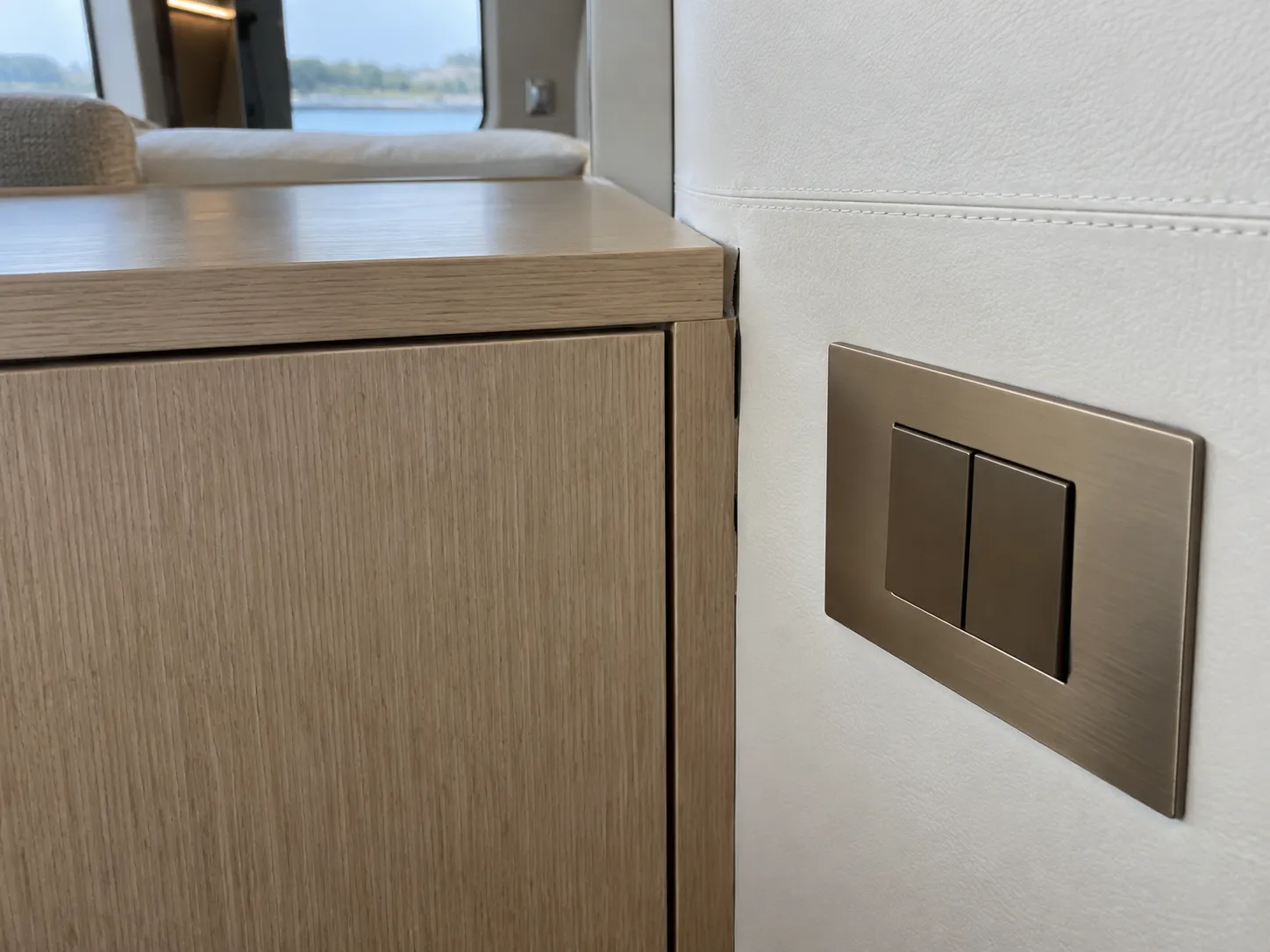
Write the acceptance criterion before work begins. For the saloon cabinet door, this could mean checking opening and alignment on board, supported by the necessary photographs. A contractor reporting completion and the internal team verifying it are separate steps; avoid merging them into one generic tick.
Agree how to retain the historical spreadsheet, who can consult it and which references belong with active jobs. A new list does not automatically reconstruct missing decisions, messages or attachments. Make those gaps visible before they become assumptions.
06Separate work lists from planned maintenance
A work list organises interventions, defects and tasks that need coordination. A Planned Maintenance System, or PMS, also addresses recurring intervals, operating hours and equipment history, depending on the selected product. Both needs may exist on the same yacht.
Evaluate Sailify here for work items, assignments, dates and verification. If your primary requirement is recurring equipment maintenance, state it before the demo and check the coverage you need. Do not infer it from the presence of a calendar or a list.
| Need | Work list | PMS to check |
|---|---|---|
| Individual intervention | Issue, assignment, outcome | How is it linked to equipment? |
| Recurring activity | Not implied by a list | Are intervals, counters and history covered? |
07Evaluate the demo with your own example
Bring a few anonymised rows, an example photograph and the pilot roles. Ask to locate a job, assign it, update it and reconstruct its verification. Check whether the handover between people is understandable, rather than simply counting fields on a screen.
Clarify data-entry options, any transfer support, attachment handling and setup conditions. The downloadable template helps you prepare information; it does not guarantee compatibility with a Sailify importer, automatic migration or services included in your plan.
Bring your example to a demo